Morse Code Translator
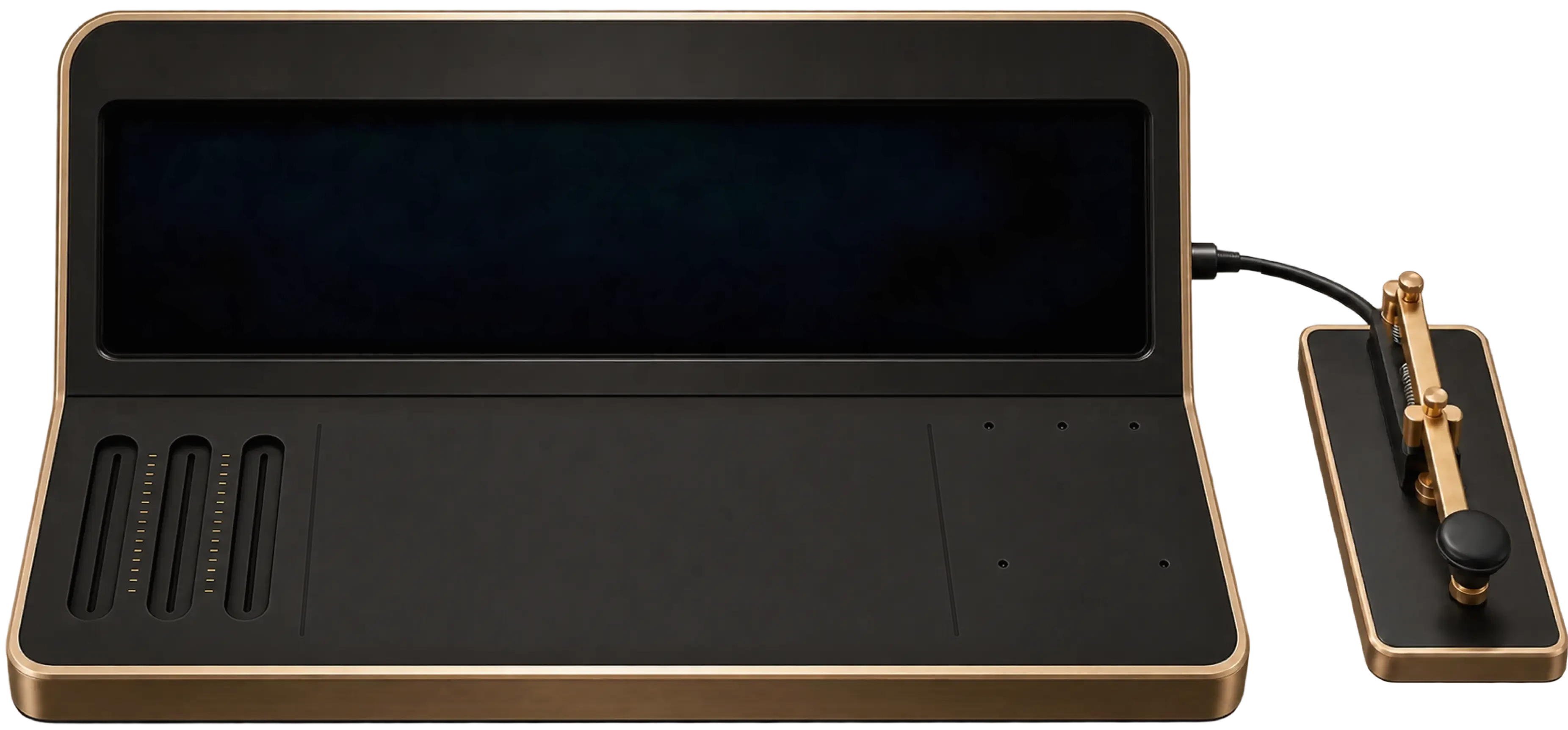
Click the left side of the display to type or paste a message. Your translation appears on the right as you type.
Text to Morse Code
Set the direction switch to TEXT → MORSE and enter a message on the left. The translator converts your text into dots and dashes as you type. A space separates letters in the output, and a slash (/) separates words.
Try HELLO WORLD. The slash marks the space between the two words. Switch to the Morse code decoder to check that it reads the same message. The direction switch moves the current translation to the input side, so you can try the reverse conversion without copying anything.
.... . .-.. .-.. --- / .-- --- .-. .-.. -..
How do you write “I love you” in Morse code?
Type I LOVE YOU into the display to get .. / .-.. --- ...- . / -.-- --- ..-. The two slashes separate the three words. Press COPY to send the dots and dashes in a message, or press PLAY to hear the whole phrase.
Convert a name, call sign, or short message
Start with the exact characters you want to send. You can type in uppercase or lowercase. The Morse code converter uses the same pattern for both. Letters and digits can appear in the same message. For example, MEET AT 5becomes -- . . - / .- - / ...... The five dots at the end represent the digit 5, and the slashes mark the two word breaks.
A line break or a run of spaces becomes a word break. If you paste several lines, check the output before sharing it, since the original line layout will be lost. If a character has no mapping in the translator, its position is marked with #. Replace it with a supported letter, digit, or punctuation mark and check the result again.
Morse Code to Text
Flip the direction switch to MORSE TO TEXT. Type or paste dots (.) and dashes (-) on the left, with a space between letters and a slash (/) between words.
Try ... --- .... The display reads SOS. If you enter ...---... as one group, the translator shows #. Add the spaces so it can read the three letters separately.
A # on the right marks a group the decoder could not recognize. Check the group before it, too. Missing spaces can join two valid letters into another valid letter without producing an error. For example, . -reads as ET, while .- reads as A.
Check the spacing and symbols
- Use a regular period and hyphen. Replace typographic dashes or middle dots if you copied the code from a formatted page.
- Put one space between groups. Each group represents one character, even when it contains several dots and dashes.
- Use
/where a new word should begin. For example,.... .. / ... .- --reads asHI SAM.
The decoder accepts typed or pasted Morse symbols. To decode a message from an image or a recording, transcribe it first. For an image, type each dot and dash in order. For a recording, write a dot for a short tone and a dash for a long tone, then use the pauses to separate letters and words. Enter one group at a time and compare uncertain groups with the Morse Code Chart.
Practice With the Telegraph Key
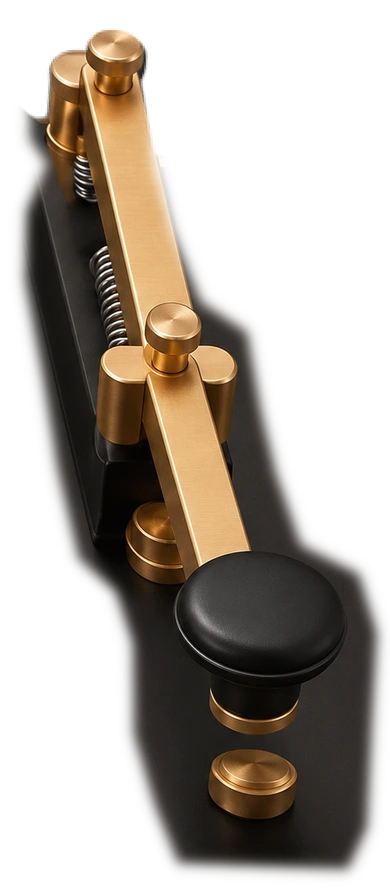
Set the switch to MORSE TO TEXT. Tap the key on the right to enter a dot, or press and hold it to enter a dash. The tone sounds while you hold the key, at the selected pitch and volume. Start with a single tap. The left side should show ., and the right side should showE. Add a dash immediately after that dot and the result changes to A, because .- is one group.
Press the spacebar between letters when using the key. To try SOS, tap three times, add a space, hold three times, add another space, and tap three times again. For a new word, click the left side of the display and type a slash. You can also edit a mistimed press there with Backspace.
Try two letters with opposite patterns. Enter .- for Aand -. for N, with a space between them. Then press PLAY and listen for which tone comes first. This gives you a short exercise you can repeat before trying a whole word.
Morse Code Translator With Audio
Generate audio from either text or a dot-and-dash message. Press PLAY to listen in your browser, or press SAVE to download the audio as a WAV file. Turn on REPEAT to hear the message again or use FLASH to see the same timing in light.
Slide WPM to set the speed from 5 to 40 words per minute. Use PITCH to change the tone and VOL to adjust the volume.
Read the signal trace while you listen
The high part of each pulse marks a tone, and the low part marks silence. A dash lasts three times as long as a dot. In SOS, look for three short pulses, three long pulses, and three short pulses again. The longer gaps separate letters. To follow the timing without sound, lower VOL and turn on FLASH. Watch the small square beside the trace for short and long flashes.
If a message is too fast to follow, stop playback with PLAY, lower the WPM, and start again. Use PITCH if you want a higher or lower note at the same speed. For practice, keep the tone and volume comfortable, and increase the speed after you can recognize the same message at a slower setting.
Choose COPY, SHARE, or SAVE
- COPY puts the translated text or dot-and-dash code on your clipboard for pasting into another app.
- SHARE copies a link that reloads your message and translation direction. Open the link to try the same message on another device.
- SAVE downloads a WAV file using the selected speed, pitch, and volume. Use it when you want a reusable audio clip.
To make a practice file, enter a short message, set the sliders, and play it once to check the timing. Then press SAVE. If the message would take more than ten minutes to play, shorten it or raise the WPM before saving. You can create separate short files for individual words if you want to practice them in a different order later.
Check a Morse Message Before You Send It
Try GO AT 9? to see how a message combines letters, a digit, and punctuation. It becomes --. --- / .- - / ----. ..--... The question mark has its own group, placed right after the group for 9. There is a space between those groups so the decoder reads two characters, but no slash because they belong to the same word.
Flip the switch and read the result on the right. Check names and numbers first, since a missing dot or dash can turn a valid character into a different one. The Morse code translator displays decoded letters in uppercase. Original capitalization and repeated spaces are lost during conversion, so compare the words and punctuation when you check the message.
If you send the code as text, keep the spaces and slashes intact when pasting it into a chat or document. If you send a share link, open it once to check that it loads the intended input. The link includes your message, so anyone you share it with can read it.
Morse Code Charts and Guides
- Morse Code ChartLook up letters, numbers, and punctuation in one place.
- Morse Code AlphabetFind the dot-and-dash pattern for any letter from A to Z.
- Morse Code NumbersLook up the five-symbol patterns for digits 0 through 9.
- SOS in Morse CodeSee and hear the SOS signal.
- How to Learn Morse CodeStart recognizing letters by sound and practice at your own pace.